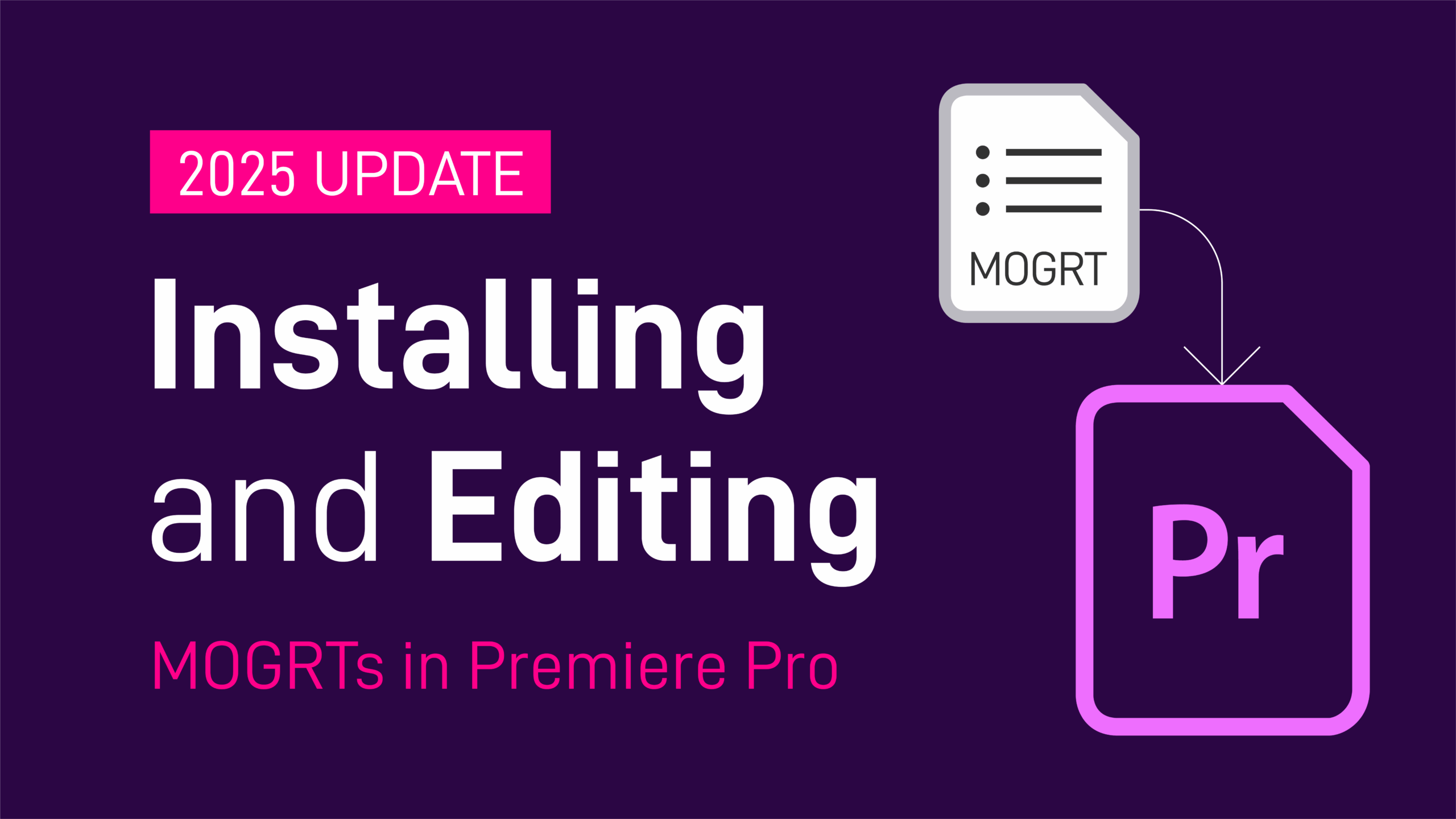
Welcome to this how-to guide on installing and editing Motion Graphics templates (MOGRTs) in Premiere Pro 2025 (or later). Feel free to watch the short explainer video below, or read the post for more detailed information.

Updated for Premiere Pro 2025:
This guide now reflects the new Graphics Templates panel, the relocation of MOGRT editing controls to the Properties panel, and updated notes on media replacement behaviour.
Quick Links
- What are MOGRT templates?
- What’s Changed with MOGRTs in Premiere Pro 2025
- How to Install MOGRTs
- How to Edit MOGRTs
- MOGRT Media Replacement
- MOGRTs in 2025 FAQs
- Where to Find MOGRTs
What are Motion Graphics Templates (MOGRTs)?
Motion Graphics Templates, or MOGRTs, are installable project files that enable quick and easy, yet professional video and text effects. You can use MOGRTs to create instant video titles, lower thirds, transitions, and overlay VFX effects.
What’s more, the beauty of Motion Graphics Templates is that you can create multiple style variations from a single file.
What Software is Needed to Use MOGRT Files?
MOGRT files are native to Adobe Premiere Pro, so a Creative Cloud subscription is required to use them.
Premiere Pro is industry-leading video editing software for film, broadcast and web – for beginners and professionals alike. You can read more about the editing power of Premiere Pro here.
For a free trial of Premiere Pro use the link below.
Premiere Pro Free TrialWhat’s New in Premiere Pro 2025 for MOGRT Editing
Premiere Pro 2025 introduced several workflow adjustments for Motion Graphics Templates:
- The Essential Graphics panel is now called Graphics Templates.
- Editable MOGRT controls now appear in the Properties panel.
- Some users report that media replacement works best when dragging from the Project panel instead of the Media Browser.
- The overall installation and timeline workflow remains familiar for users of 2024 and earlier.
How to Install and Edit MOGRT Files
MOGRT files will not ‘open’ when you double-click the file. To view and use a MOGRT it must first be imported into Premiere Pro.
Here’s the easiest way of importing MOGRTs into Premiere Pro.
1. In Premiere, open an existing Sequence or create a new one
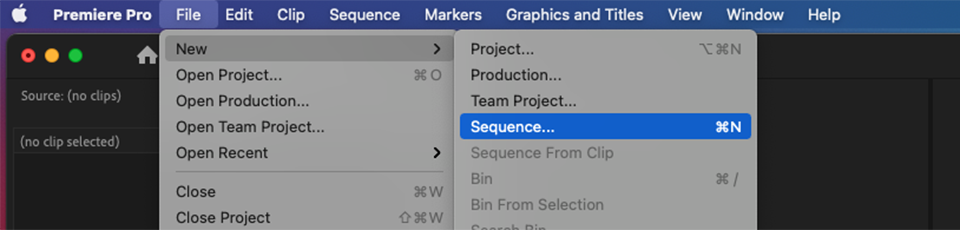
Before you import the MOGRT, be sure to have a Sequence ready, so you have a Timeline on which to place and view the template. MOGRTs can only be viewed on the Premiere Pro Timeline.
2. Install the template into your Library
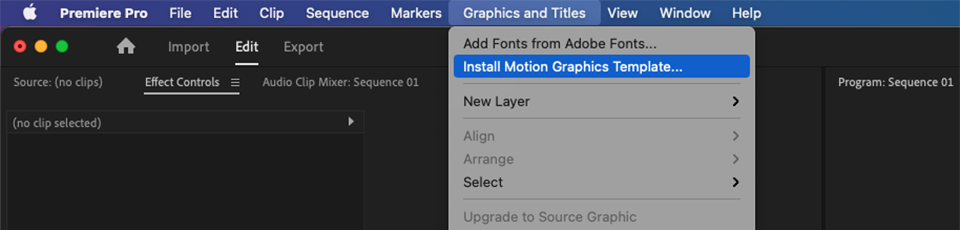
From Premiere’s menu, choose Graphics & Titles > Install Motion Graphics Template to add the MOGRT file to your Library.
Alternatively, open the Graphics Templates panel (previously called Essential Graphics) and drag the MOGRT file directly into it.
3. Drag the template onto your Timeline
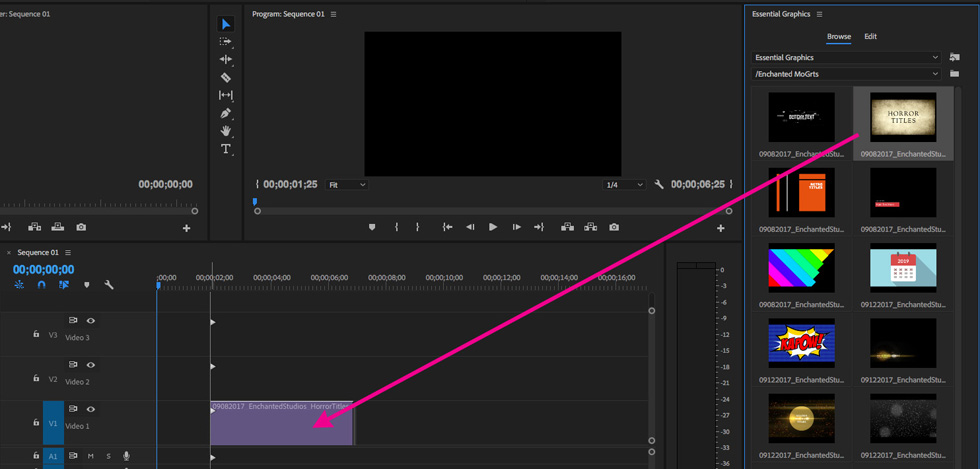
Once the template appears in the Graphics Templates panel (formerly Essential Graphics), you can drag it onto your sequence timeline. This creates an “instance” of the template — a clip that behaves like standard media and can be moved, trimmed, or cut as needed.
4. Change the instance settings
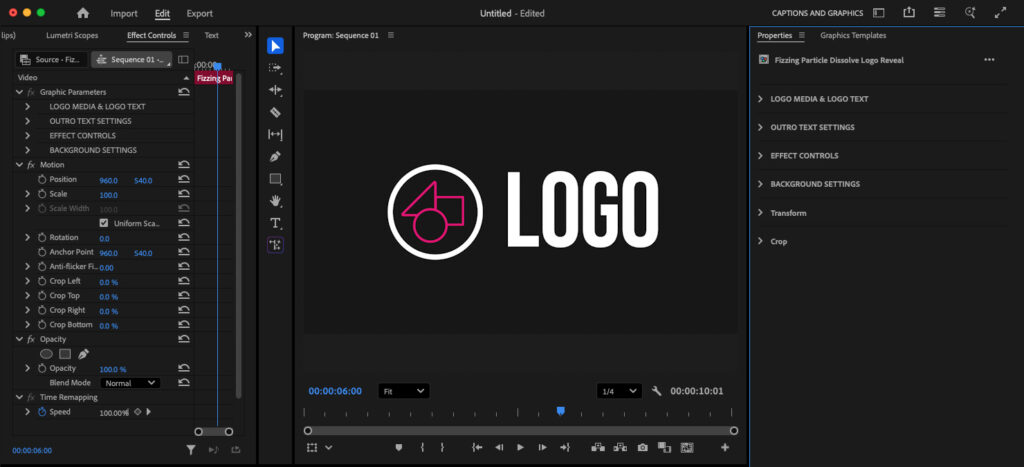
Select the template instance on the timeline to reveal its editable controls in the Properties panel. Double-click the template instance if this panel does not appear.
In Premiere Pro 2025, all MOGRT adjustments — text, colours, animation controls, and other custom options — now appear in the Properties panel – rather than the old Edit tab inside Essential Graphics.
The settings you change here apply only to the currently selected instance.
5. Add more instances for multiple variants
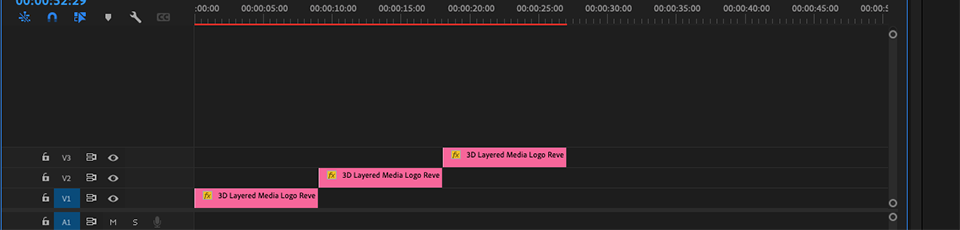
Dragging the MOGRT template from the Library once more creates a new, separate instance containing default settings. This allows for several, individually styled sequences from a single template. Handy, for example, when creating titles and lower thirds where multiple variations require the same visual style but with different text.
All MOGRT files use the same installation and application procedure. Please watch the example video at the top of this page to see how it’s done from start to finish.
More About MOGRT Template Editing
With an instance placed on the timeline and selected, the editable options will appear in the Properties panel (formerly the Edit tab within Essential Graphics). Here you’ll find fields for text, colour, size, position, timing controls, and other parameters defined by the template creator.
Templates that offer multiple visual or animation styles may include dropdown menus and checkboxes. In older templates — created before such options existed — you may see sliders used instead to adjust style variations.
The following short video shows MOGRT editing in action (Premiere Pro version 2022).
Media Replacement
If a template supports Media Replacement, you’ll see replaceable image/video placeholders in the Properties panel (previously found in Essential Graphics).
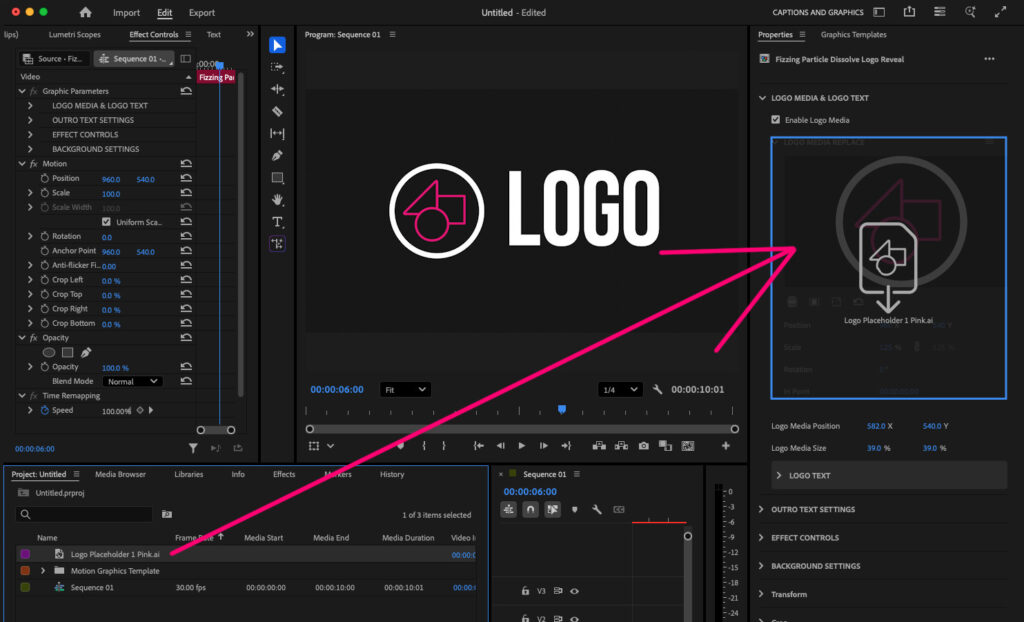
Media Replacement is perfect for logo reveal and photo gallery slideshow templates.
To replace content, simply drag media onto the placeholder thumbnail.
Note: Some users have reported that dragging from the Media Browser may show a prohibition icon in Premiere Pro 2025. Dragging from the Project panel works reliably.
Use the controls beneath the thumbnail to adjust sizing, cropping, or (for video) timing.
Media Replacement is available only in MOGRTs created for Premiere Pro 2021 or later.
Find out more about Media Replacement in MOGRTS here.
Duplicating Settings
Once you’ve set the style and colors of a template instance, on the Timeline, it is advisable to duplicate your edited clip so you don’t have to start again from default settings. You can duplicate the clip instance by holding down Alt (Mac) or Option (PC) and dragging a copy of it along the timeline or to a new video layer.
FAQs: MOGRTs in Premiere Pro 2025
How do I install MOGRTs in Premiere Pro 2025?
Install via Graphics → Titles → Install Motion Graphics Template or drag the MOGRT into the Graphics Templates panel (previously Essential Graphics).
Where is the Essential Graphics panel in Premiere Pro 2025?
It’s now called the Graphics Templates panel. All MOGRT editing controls are in the Properties panel.
How do I edit a MOGRT in Premiere Pro 2025?
Select the MOGRT on your timeline, then adjust text, colors, and animation settings in the Properties panel.
Why can’t I drag media into a MOGRT placeholder?
Some users experience issues dragging from the Media Browser. Drag assets from the Project panel or directly from your desktop/drive instead.
What is Media Replacement in MOGRTs?
It lets you swap logos, images, or videos in a MOGRT without affecting the animation.
The Best Place to Find MOGRT Template Files
Adobe Stock has thousands of vetted, premium MOGRT templates to choose from, each one created by approved MOGRT authors and thoroughly checked by the Adobe team for usability and performance.

Grab a free Adobe Stock trial from the following link.
Try Adobe Stock for free!Where to Get Free MOGRTs
Actually, Adobe Stock is also a great place to find free MOGRT templates.
Free MOGRT Templates from Adobe StockThat’s all for now!
Please share this awesome page of inspiration with others and be sure to follow our YouTube channel for more video content freebies!